Is it really free?
Yes. Press Hotkeys is distributed for free, with no subscription, ads, or required account.
macOS 13+ · Intel and Apple Silicon
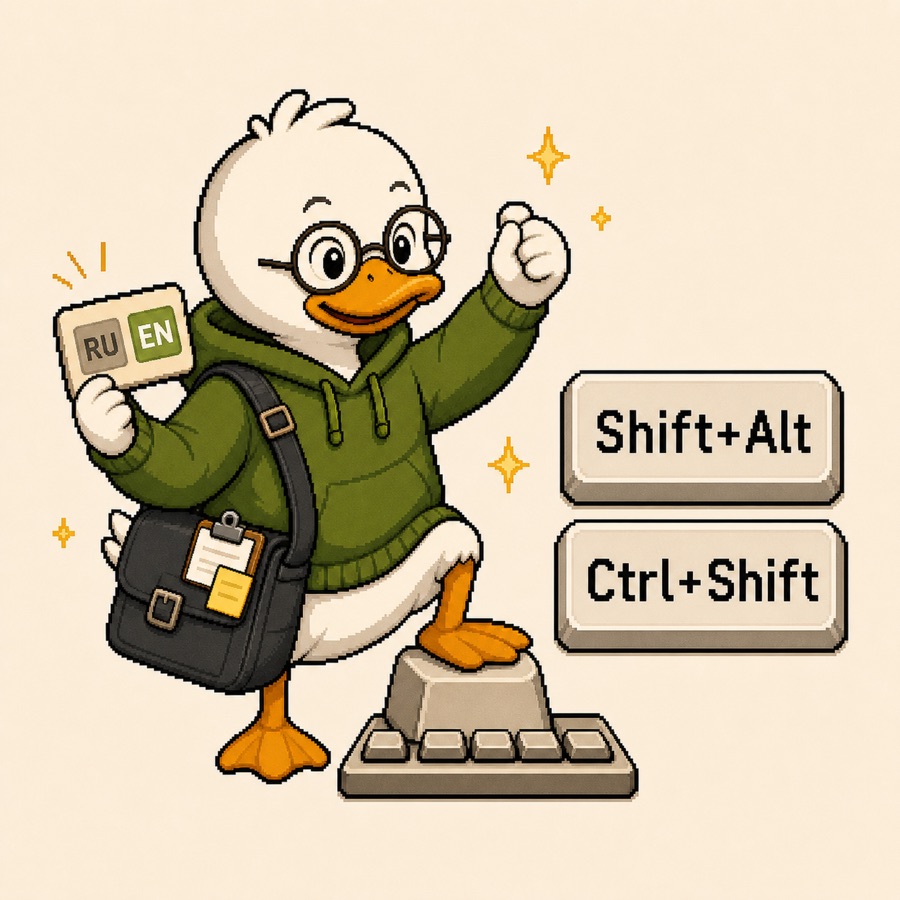
Press Hotkeys brings familiar shortcuts to macOS: layout switching with
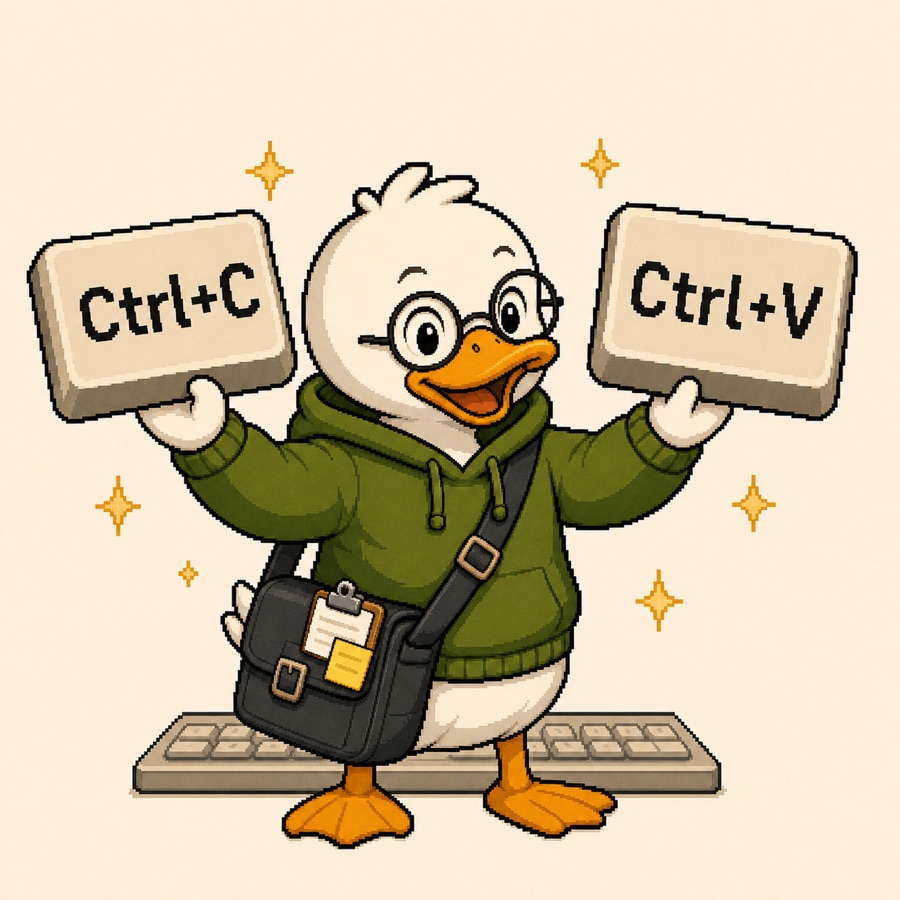
Alt+Shift, commands such as Ctrl+C and
Ctrl+V, and a catalog of Windows-style hotkeys. The current
input language stays visible in the menu bar, and custom shortcuts are
configured in the app.

Ctrl+C and Ctrl+V.
Press Hotkeys is built for people who moved to Mac from Windows, work
in both systems, or switch keyboard layouts often. Instead of mentally
translating Ctrl into Cmd, the app sends the
matching macOS action for the shortcut you already know. Your hands keep
moving, and your attention stays on the task.
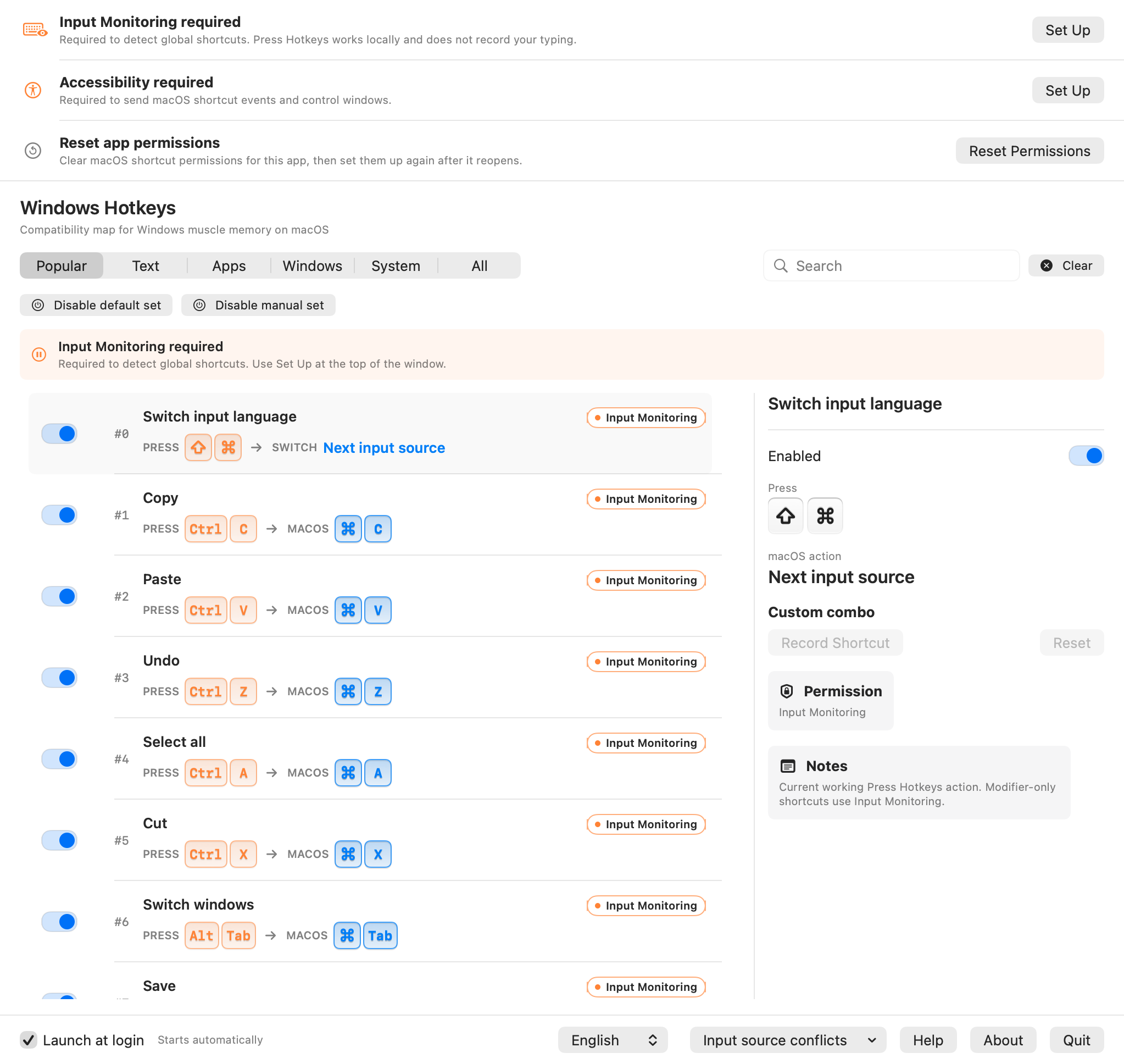
Use Alt+Shift, Ctrl+Shift, Cmd+Shift,
or record your own shortcut. Press Hotkeys detects it globally, switches
the input source through macOS, and updates the menu-bar language badge
immediately. If the shortcut is already reserved by macOS, the app points
you to the setting that needs attention.
Features
Common shortcuts such as Ctrl+C, Ctrl+V,
Ctrl+A, and Ctrl+S become the matching macOS commands.
Ctrl+Space and Ctrl+Option+Space
when those macOS input-source shortcuts conflict with your setup.
Hotkeys
The current catalog includes 146 Windows-style entries across 143 ranked scenarios. Reliable mappings can be enabled right away, potentially conflicting actions stay off by default, and shortcuts without a stable macOS equivalent are marked as limited or informational.
Cmd + Shiftdefault layout-switching shortcutAlt + Shiftfamiliar Windows-style option146Windows-style entries in the current catalogLocalsettings stay on your Mac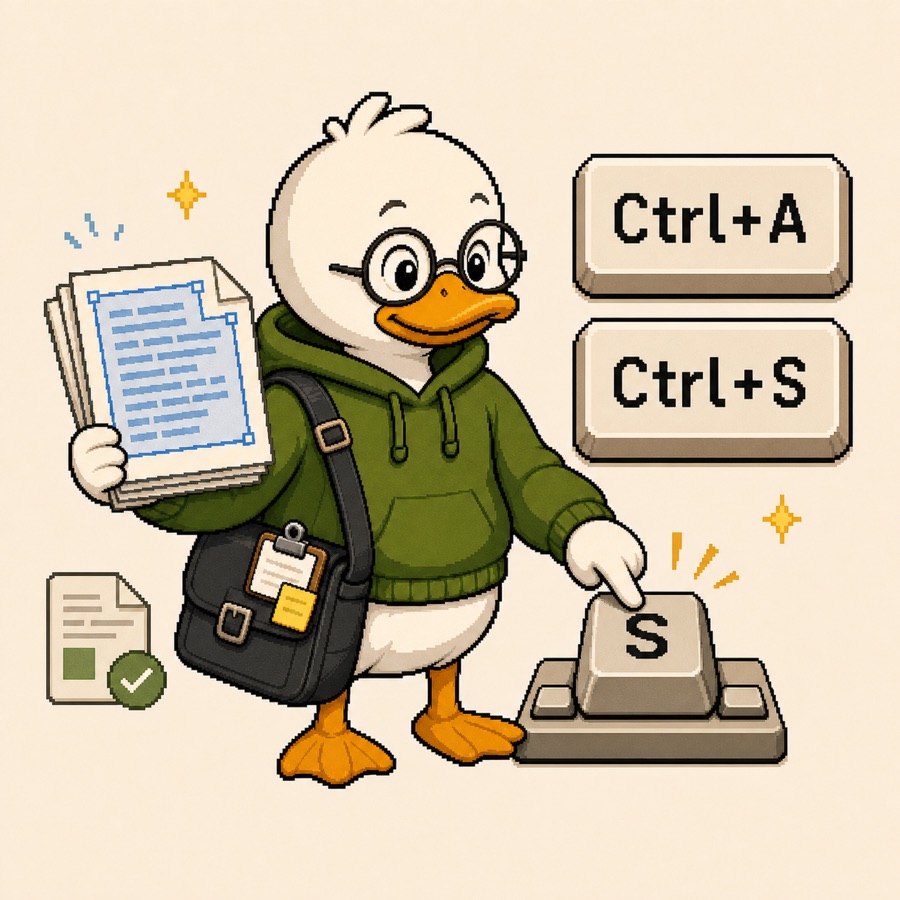
Status labels separate ready-to-use behavior from system limits: works means the action is supported; can be enabled means it is available but off by default; native means macOS already behaves as expected; limited means there is no exact or safe global equivalent.
| Category | Shortcuts | Result | Status |
|---|---|---|---|
| Layout switching | Cmd + Shift, Alt + Shift, Ctrl + Shift |
The input language changes with the shortcut your hands already know. | Works |
| System conflicts | Ctrl + Space, Ctrl + Option + Space |
The app helps find and disable macOS input-source shortcuts when they conflict with your chosen layout switcher. | Needs macOS setup |
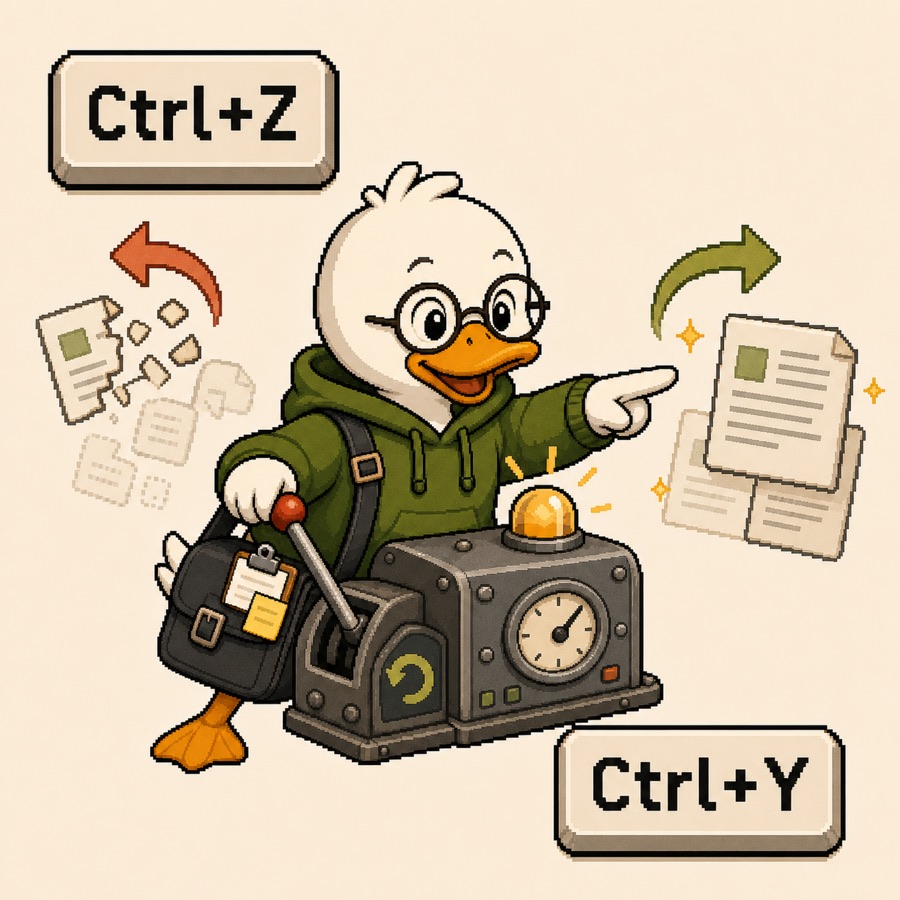
| Core commands | Ctrl + C, Ctrl + V, Ctrl + X, Ctrl + A, Ctrl + Z, Ctrl + S, Ctrl + F |
Copy, paste, cut, select all, undo, save, and find. | Works |
| App commands | Ctrl + P, Ctrl + Y, Ctrl + N, Ctrl + O, Ctrl + W, Ctrl + T, Ctrl + Shift + T, Ctrl + Tab, Ctrl + Shift + Tab, F5, Ctrl + R, Ctrl + L |
Print, redo, create and open files, manage tabs, reload, and focus the address bar. | Works or native |
| Text navigation | Home, End, Ctrl + Left, Ctrl + Right, Ctrl + Home, Ctrl + End, Up, Down, Ctrl + Up, Ctrl + Down, Page Up, Page Down |
Move to line ends, words, document edges, paragraphs, and pages. | Works or native |
| Text selection | Shift + Left, Shift + Right, Shift + Up, Shift + Down, Ctrl + Shift + Left, Ctrl + Shift + Right, Ctrl + Shift + Up, Ctrl + Shift + Down, Shift + Home, Shift + End, Ctrl + Shift + Home, Ctrl + Shift + End, Shift + Page Up, Shift + Page Down |
Select characters, words, lines, paragraphs, and larger text ranges. | Works or native |
| Deletion | Backspace, Delete, Ctrl + Backspace, Ctrl + Delete, Shift + Delete |
Delete characters and words. Dangerous deletion without Trash is not mapped as a global command. | Mixed |
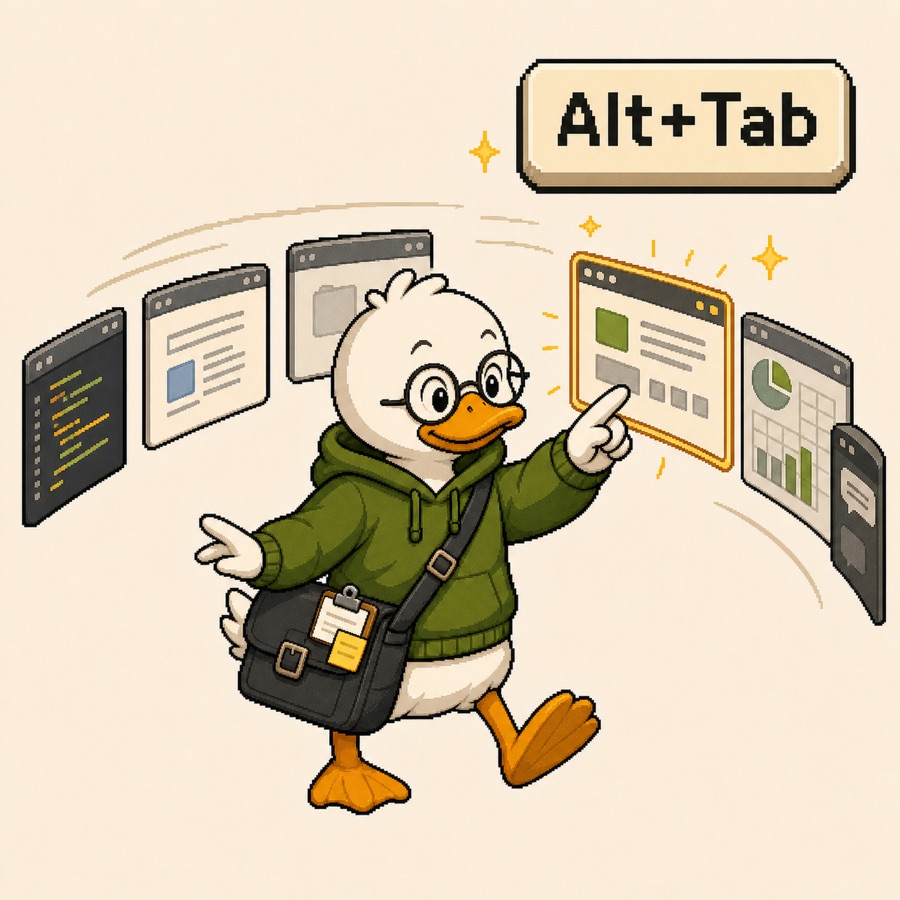
| Windows | Alt + Tab, Alt + F4, Win + D, Win + Tab, Win + Left, Win + Right, Win + Up, Win + Down, Win + M, Win + Shift + M |
Switch and close windows, show the desktop, open Mission Control, tile, minimize, and restore windows. | Can be enabled; some actions need Accessibility |
| Spaces | Win + Ctrl + D, Win + Ctrl + Left, Win + Ctrl + Right, Win + Ctrl + F4 |
Switching Spaces works through Mission Control shortcuts; creating and closing Spaces is limited by public macOS behavior. | Partial |
| System | Ctrl + Shift + Esc, Win + E, Win + L, Win + R, Win + S, Win + I, Win + V, Win + P, Win + K, Win + A, Win + N, Win + H, Win + U |
Activity Monitor, Finder, Lock Screen, Spotlight, System Settings, displays, notifications, dictation, and accessibility features. | Partial |
| Screenshots and symbols | Win + Shift + S, PrtScn, Win + PrtScn, Win + ., Win + ;, Win + +, Win + Esc |
Screenshots, the emoji picker, and zoom controls through the closest macOS actions. | Works; some behavior depends on system settings |
| Finder and browser | Alt + Left, Alt + Right, Alt + Up, Ctrl + Shift + N, F2, Alt + Enter |
Back, forward, parent folder, new folder, rename, and item information. | Can be enabled; behavior depends on the app |
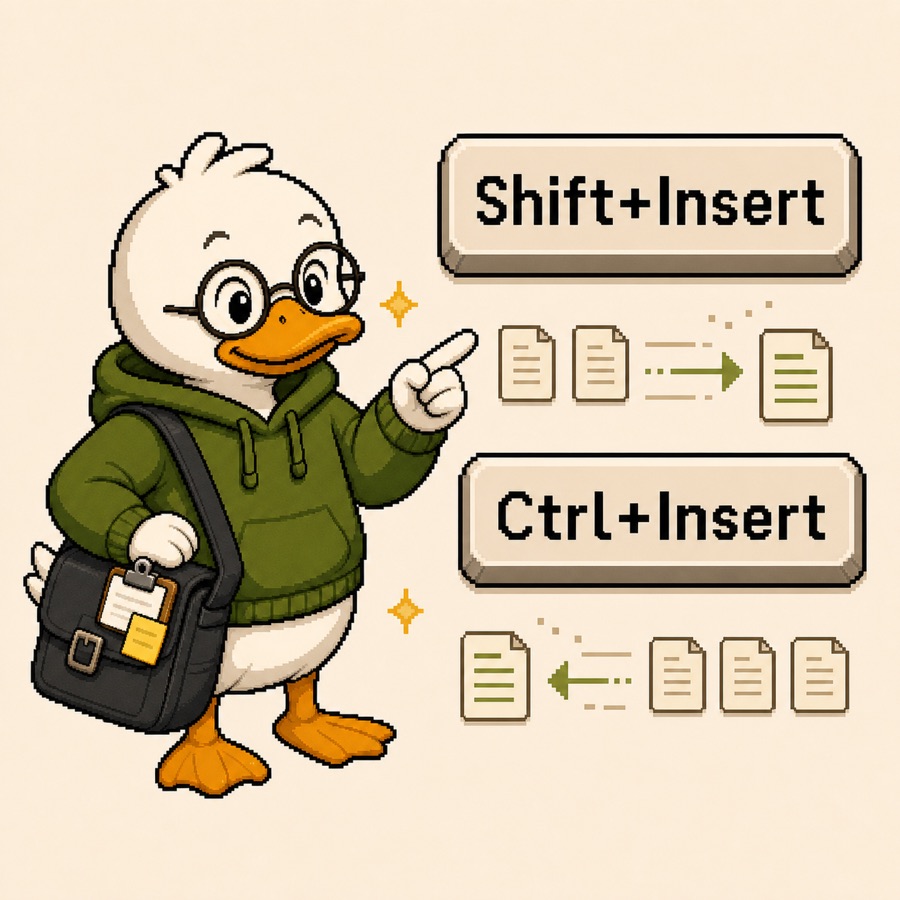
| Legacy | Ctrl + Insert, Shift + Insert |
Copy and paste shortcuts still used in terminals and corporate apps. | Works |
| No stable equivalent | Ctrl + Alt + Delete, Win + G |
Windows Security Screen and Xbox Game Bar cannot be reproduced reliably by a third-party macOS utility. | Informational |
Setup
Download the disk image, move the app to Applications, grant the required macOS permissions, and choose your shortcuts. No installer, Terminal command, or manual configuration file is required.
Open the disk image and move PressHotkeys.app to Applications.
This lets macOS treat it as an installed utility rather than an app running from the disk image.
Input Monitoring detects global shortcuts. Accessibility sends the matching macOS actions and controls windows.
Test layout switching first, then enable only the Windows-style commands you actually use.
FAQ
Yes. Press Hotkeys is distributed for free, with no subscription, ads, or required account.
Input Monitoring lets the app detect enabled global shortcuts even when another app is active. Accessibility is required to send the matching macOS commands and perform window actions such as tiling a window to half of the screen.
macOS 13 Ventura and later. The universal build runs on both Intel Mac and Apple Silicon.
Input Monitoring technically grants access to keyboard events. Press Hotkeys uses it to recognize enabled shortcuts only; processing stays local, and no data or telemetry is sent anywhere.
Ambiguous or potentially conflicting scenarios are off by default. Each mapping can be enabled or disabled separately, so the setup can match your apps and habits.
Download
Download the DMG, move the app to Applications, and choose your setup. Press Hotkeys stays in the menu bar, switches keyboard layouts with a familiar shortcut, and brings back the commands macOS places on different keys.